Technical Assessment
A guided, timed knowledge interview inside VS Code. Questions are chosen for the role on your ticket. The session is scored out of 100 and recorded against your application.
What it evaluates
Technical Assessment measures core understanding for the role you applied for — not a take-home project. You stay in the assessment panel, answer questions in order, and submit when you finish or when time runs out.
Open it from the Tool Hub or the sidebar after installing the VS Code extension.
Session flow
- 1
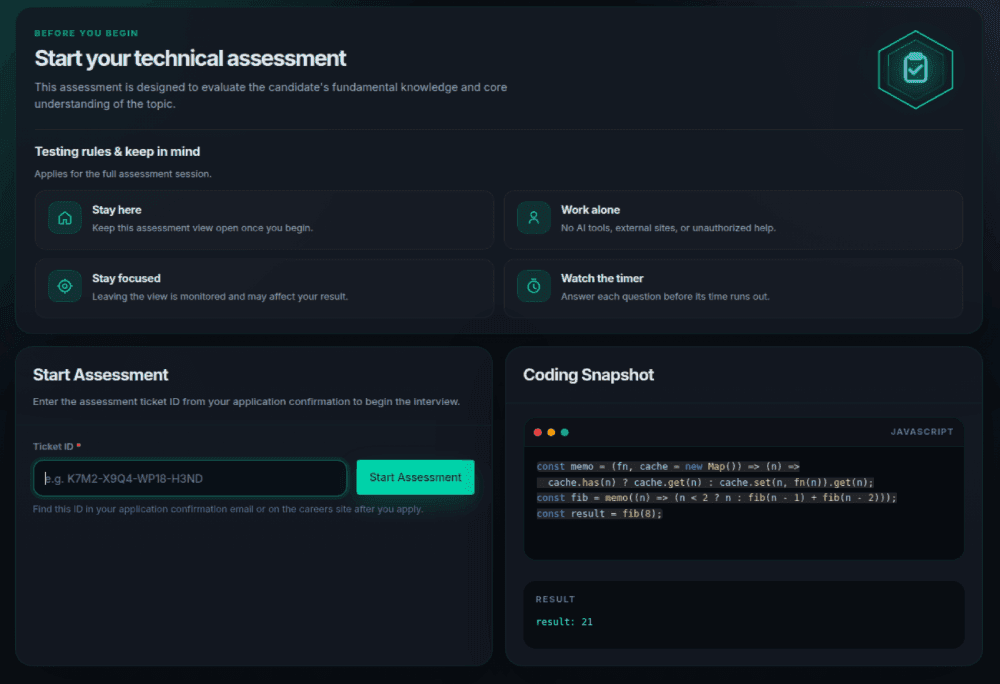
Start screen
You see the rules, a ticket field, and a short coding snapshot. Enter the ticket ID from your application confirmation and start. The extension verifies the ticket, binds it to this computer, and loads the role's question set.
- 2
Guidelines
After a successful verify, a briefing view summarises question count, timing, and integrity rules. There is no timer on this page. Begin only when you are ready to stay in the assessment.
- 3
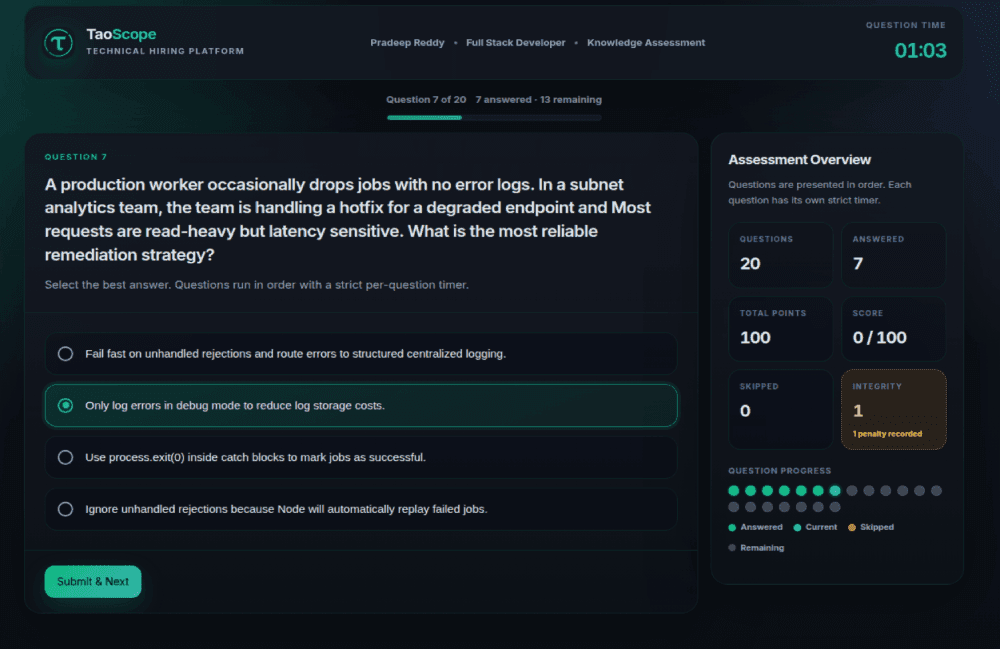
Questions
Questions run in order. Each has its own countdown. Progress is saved automatically while you work. When the last question is done — or its timer expires — the session is submitted.
- 4
Results
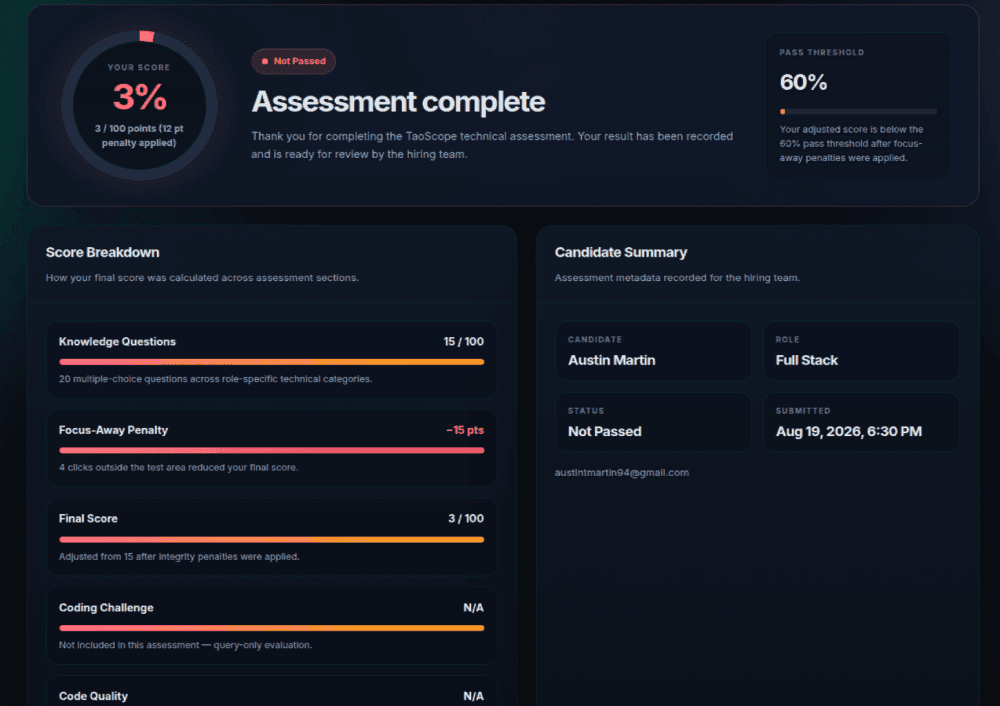
You see a score breakdown immediately. The same result is stored on your application. Re-entering the ticket later shows that recorded attempt; you cannot sit the same ticket twice.
Questions and timing
Each assessment presents 20 multiple-choice questions with a fixed difficulty mix. Points are spread evenly so the paper totals 100.
| Mix | Count |
|---|---|
| Easy | 5 |
| Medium | 7 |
| Hard | 8 |
| Total | 20 questions · 100 points |
Time is per question, not a single clock for the whole paper. Read the current question fully; unanswered questions score zero when their timer ends. The session duration is the sum of those per-question limits.
Scoring
A question scores its full point value only if the selected options match the answer key exactly. Partial credit is not awarded.
| Rule | Value |
|---|---|
| Maximum score | 100 |
| Pass threshold | 60% |
| Focus penalty | 3 points per recorded leave, capped at 15 |
| Final score | Raw total minus focus penalty, not below zero |
The result sent with your application includes the raw total, any focus penalty, the percentage, and whether you met the pass threshold.
Integrity during the session
Stay in the assessment view
Once you begin, leaving the assessment area is monitored: clicking outside the panel, switching to another editor tab, focusing the terminal, or opening another application. Each confirmed leave is timestamped and may reduce the score as in the table above. A cooldown prevents a single interruption from counting many times.
Editor lockdown
Technical Assessment uses a strict test environment by default. When the session starts, other editor tabs, the terminal panel, and extra side bars are closed. Re-opening them is blocked and recorded. This applies only to Technical Assessment — Coding Assessment never uses lockdown, because you need the workspace to complete the task.
Work alone
Closing the assessment panel mid-session asks you to confirm. Progress is saved; reopening the panel can resume an in-progress attempt on the same ticket rather than starting over.
Submitting and results
Submit from the last question, or let the final timer expire — the extension submits automatically either way. After submit you see percentage, points, and a short breakdown. That result is what hiring review uses.
Already completed
For what is stored on the device versus sent to TaoScope, see Integrity and privacy.
Last updated August 19, 2026