VS Code extension
TaoScope Coding Assessment is the VS Code extension candidates use to complete hiring evaluations. This page covers installation, tickets, and which assessment to open.
What the extension is
After you apply for a role on Careers, the hiring process continues inside your editor. The extension — published as TaoScope Coding Assessment — gives you a TaoScope sidebar, a Tool Hub, and two separate assessment panels:
- Technical Assessment — timed knowledge questions matched to the role you applied for.
- Coding Assessment — a timed, workspace-based task you implement and submit from VS Code.
Both flows use the same ticket ID from your application. TaoScope looks up that ticket, then loads the assessment for the role on file. You do not create an account inside the extension.
Compatible editors
How you get here
- 1
Apply for a role
Submit an application on taoscope.com/careers. You receive an assessment ticket ID on the confirmation screen and by email.
- 2
Start the technical assessment
Install the TaoScope Coding Assessment extension in VS Code, paste your ticket ID, and begin. The technical assessment is available as soon as you apply — no approval wait.
- 3
Continue to coding if you pass
Passing the technical assessment unlocks the coding assessment for the same ticket. Complete each step while the material is fresh.
Install
Search the Extensions view for TaoScope Coding Assessment, or install by ID:
taoscope.taoscope-coding-assessmentDirect listing: Visual Studio Marketplace.
From a terminal, if you prefer the CLI:
code --install-extension taoscope.taoscope-coding-assessmentOpen TaoScope in the editor
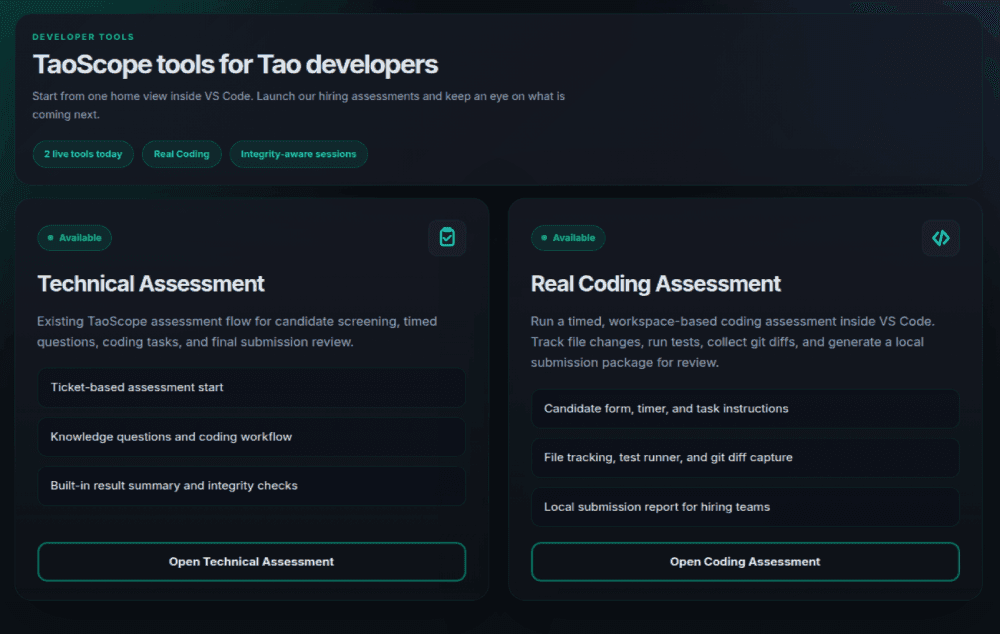
Click the TaoScope icon in the activity bar on the left. The sidebar is the navigation home. If no assessment is open yet, the Tool Hub opens automatically — one place to launch Technical Assessment or Coding Assessment.
You can also use the Command Palette:
| Command | Opens |
|---|---|
| TaoScope: Open Tool Hub | The home view for assessment tools. |
| TaoScope: Start Coding Assessment | The Technical Assessment panel (knowledge questions). |
| Coding Assessment: Open Dashboard | The workspace-based Coding Assessment panel. |
Your assessment ticket
The ticket ID is a random code, for example K7M2-X9Q4-WP18-H3ND. Paste it exactly. The extension verifies it against TaoScope, binds it to this computer, and loads the assessment for the role on that application.
- One ticket belongs to one candidate and one application.
- A ticket can be used from one bound computer. Starting on a different machine is rejected.
- If you have already completed the assessment, the extension shows the recorded result instead of starting again.
Keep the same computer
The two assessments
Technical Assessment
Twenty timed questions, a 100-point scale, focus integrity checks, and an editor lockdown while you are in session.
Coding Assessment
A real repository task for your role. You implement work in the workspace, run tests, and submit a package when ready.
Follow the email or careers confirmation for which one to take. They are separate tools in the sidebar; completing one does not automatically start the other.
What you need
- A stable internet connection — the ticket, questions, and results are loaded from TaoScope.
- VS Code (or a compatible editor) with the workspace trusted.
- For Coding Assessment: Git available on the PATH if the task clones a repository, plus the ability to run the project’s test and build commands.
- Time to finish in one sitting. Technical Assessment auto-submits when the last question timer ends. Coding Assessment can still be submitted late, but it is marked as such.
Read the rules on screen
Last updated August 19, 2026