Coding Assessment
A timed, role-specific coding task you complete inside a VS Code workspace. You implement real work, run the project’s tests, and submit a package for hiring review.
What it evaluates
Coding Assessment is a 40-minute practical exercise. After your ticket is verified and you have passed Technical Assessment, you receive a role-specific repository task. AI tools and the open web are allowed — reviewers care about how you ship real work and creative judgment.
Unlike Technical Assessment, this flow never locks down the editor. You need the file explorer, terminal, and editor tabs to do the work. Before you start, the extension checks that Git, Node.js, and any listed tools are installed.
Session flow
- 1
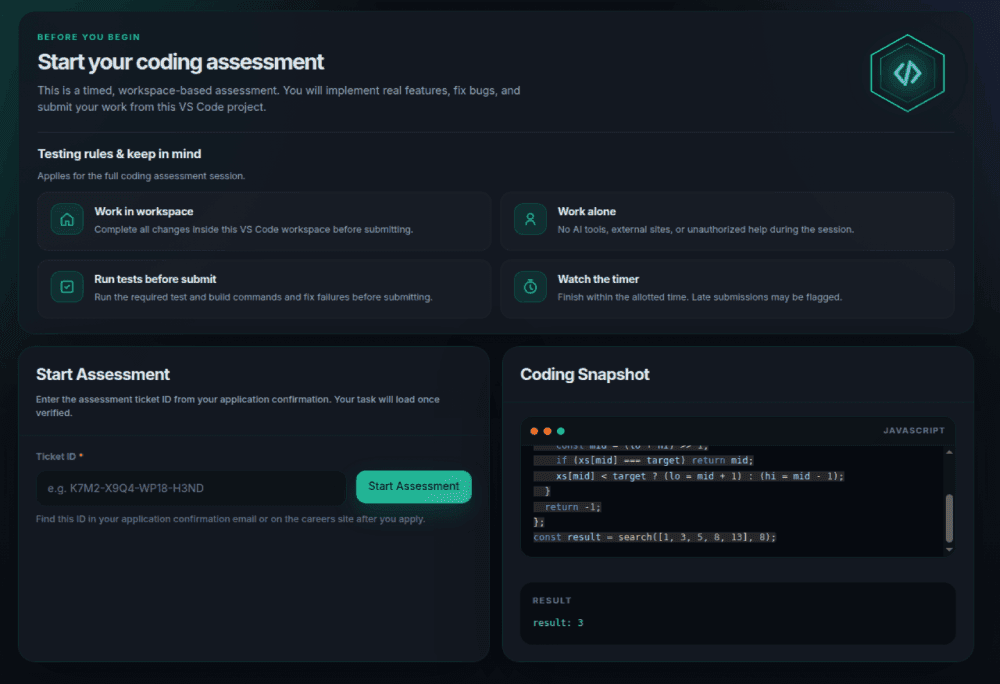
Start screen
Rules, ticket field, and a coding snapshot. Enter the ticket ID and choose Verify Ticket. A branded progress view is shown while TaoScope checks the ticket and binds it to this computer.
- 2
Task briefing
On success the start screen is replaced by a dedicated task view: title, instructions, role, difficulty, duration, required work, acceptance criteria, and any role-specific rules or test commands. Review this fully before you start. The timer has not started yet.
- 3
Consent, environment, and start
Accept the privacy notice and pass the environment check (Git, Node.js, and Python when required). Start Assessment then clones the role repository, creates a branch named with your ticket ID, and starts the 40-minute timer.
- 4
Build and submit
Implement the required work in the workspace. When you submit — or when the timer ends — the extension commits and pushes your ticket-ID branch automatically. If push fails, contact your recruiter to transfer the result.
How the task is chosen
After you verify, TaoScope loads the application for that ticket and maps its role to a task definition. Duration is set by the task — commonly 60 or 90 minutes — and is shown on the briefing view before you start.
If the task specifies a repository, starting clones it, creates a candidate branch, and opens that folder. Work only in that workspace. Do not change assessment configuration files unless the task says to.
Working in the workspace
Rules that apply for the whole session
- Complete all changes inside the VS Code workspace opened for the assessment.
- Use AI tools, docs, and the open web freely — show your real work method.
- Your git branch name is your ticket ID. The extension pushes when you finish or when time ends.
- If git push fails, contact your recruiter to transfer the result.
Status on the task view
What is tracked
Coding Assessment records activity that hiring review uses to understand how the work was produced. It does not capture your screen unless a future, explicitly enabled setting says otherwise — screenshot tracking is off by default.
| Recorded | Purpose |
|---|---|
| File changes | Which files you created, edited, or deleted, and when. |
| Edit timing | A timeline of edits in tracked files. |
| Paste metadata | Size and timing of pastes (not the clipboard contents of unrelated apps). |
| Test and build results | Commands run, exit codes, and pass or fail. |
| Focus events | When the editor lost or regained focus, for session integrity. |
Environment files, private keys, .git, node_modules, and similar generated folders are excluded from file tracking. See Integrity and privacy.
Submitting
Submit asks you to confirm, then runs final test and build commands when the task defines them, commits your work on the candidate branch when Git is available, and writes a submission package under .assessment/submission (report JSON, git diff, and a zip when possible).
If Git cannot push, the local package is still saved for review. Open Submission Folder from the results view to see what was written on disk.
Do not skip the tests
Last updated August 19, 2026